VSM STUDIO
Overview
VSM Studio is an integrated development environment (IDE) included with all copies of Proteus and designed to work seamlessly with the Proteus VSM simulation software. In addition to all the features you would expect from a development environment we have included:
- Automatic detection and configuration of a large and growing number of compilers such that they produce the output format most compatible with a Proteus VSM simulation. This happens literally at the push of a button so you can start work on a project and then compile from inside VSM Studio without having to learn and change compiler argument lists.
- Direct communication with the schematic module. Successful compilation of source code automatically applies the firmware to the microcontroller component on the schematic. Debugging commands in VSM Studio (breakpoints, single step, etc.) synchronously advance and pause the schematic simulation.
- Active popup technology allows you to specify areas of interest on the schematic and have them appear as docked windows in the VSM Studio IDE during simulation. This allows you to both view (e.g LCD Display) and interact (e.g. buttons, switches) with your schematic while debugging inside the IDE.
- Unique peripheral gallery and high level driver functions for use with Arduino.
- A MicroPython toolchain alongside the compiled language toolchains, so that Python firmware is developed in the same way as C and C++ (see Supported Compilers).
- Use of the system instruments from inside the IDE. The System Scope and the System Meter dock at the bottom of the window and remain available while you debug in VSM Studio (see System Meter).
- Access to the EDAi AI assistants from inside VSM Studio for code-level guidance on the firmware you are writing (see the EDAi manual).
VSM Studio is not a requirement for a VSM simulation. Proteus opens more than one route onto the same simulation and you are free to pick whichever suits the job in front of you. A large firmware project built on vendor middleware, say a 35-file STM32 project, is often better served by a third-party IDE such as STM32CubeIDE driving the simulation over GDB; the Cortex-M targets expose a GDB Remote Serial Protocol server for exactly this purpose and Testing and Debugging has the detail. A short prototype test, bringing up a TFT interface for example, is exactly what VSM Studio is for. Where the firmware is built elsewhere entirely, you can simply attach the compiled file by hand through the Edit Component dialogue of the processor on the schematic. VSM Studio is the convenient default for small and medium projects, and the other routes stay open to you whenever a project outgrows it.
About this Documentation
This help file contains a pair of walkthrough tutorials and some general usage information on working with the VSM Studio IDE.
More specific help is available for all dialogue forms in VSM Studio via either the question mark button at the top of the dialogue form or via the F1 keyboard shortcut.
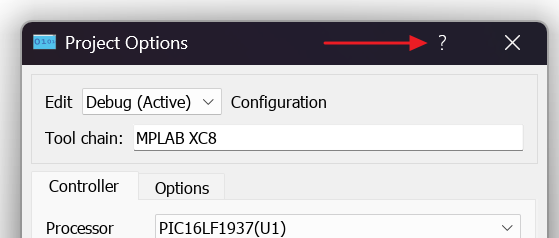
The question mark help button in a VSM Studio dialogue title bar.
More detailed discussion of Proteus VSM and advanced debugging techniques is provided in the main Proteus VSM tutorial, while information on creating schematics for both simulation and PCB layout is covered in the Schematic Capture tutorial. We strongly recommend that in addition to this document you spend some time reviewing areas of these documents applicable to your work.